

Enhance User ExperienceWell-designed starter inputs can streamline interactions, collect necessary information upfront, and make your app more effective. They’re often essential for creating structured, purposeful conversations.
Watch How to Add Starter Inputs
Watch a short video of how to add starter inputs to your Playlab app.Adding Starter Inputs Process
Access the Inputs Menu
Navigate to the Inputs section in your app editor.
- On the right-hand navigation menu, click the Inputs button
- This will open the starter inputs configuration panel
Add and Configure Inputs
Begin setting up your inputs.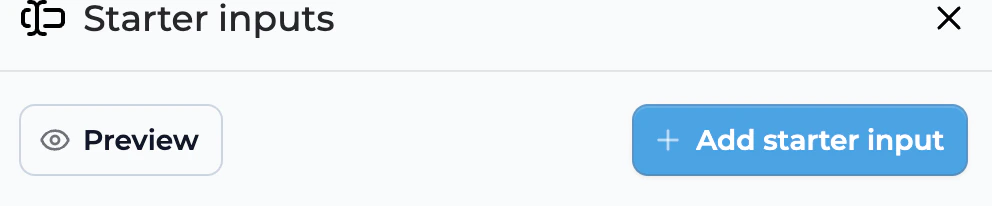
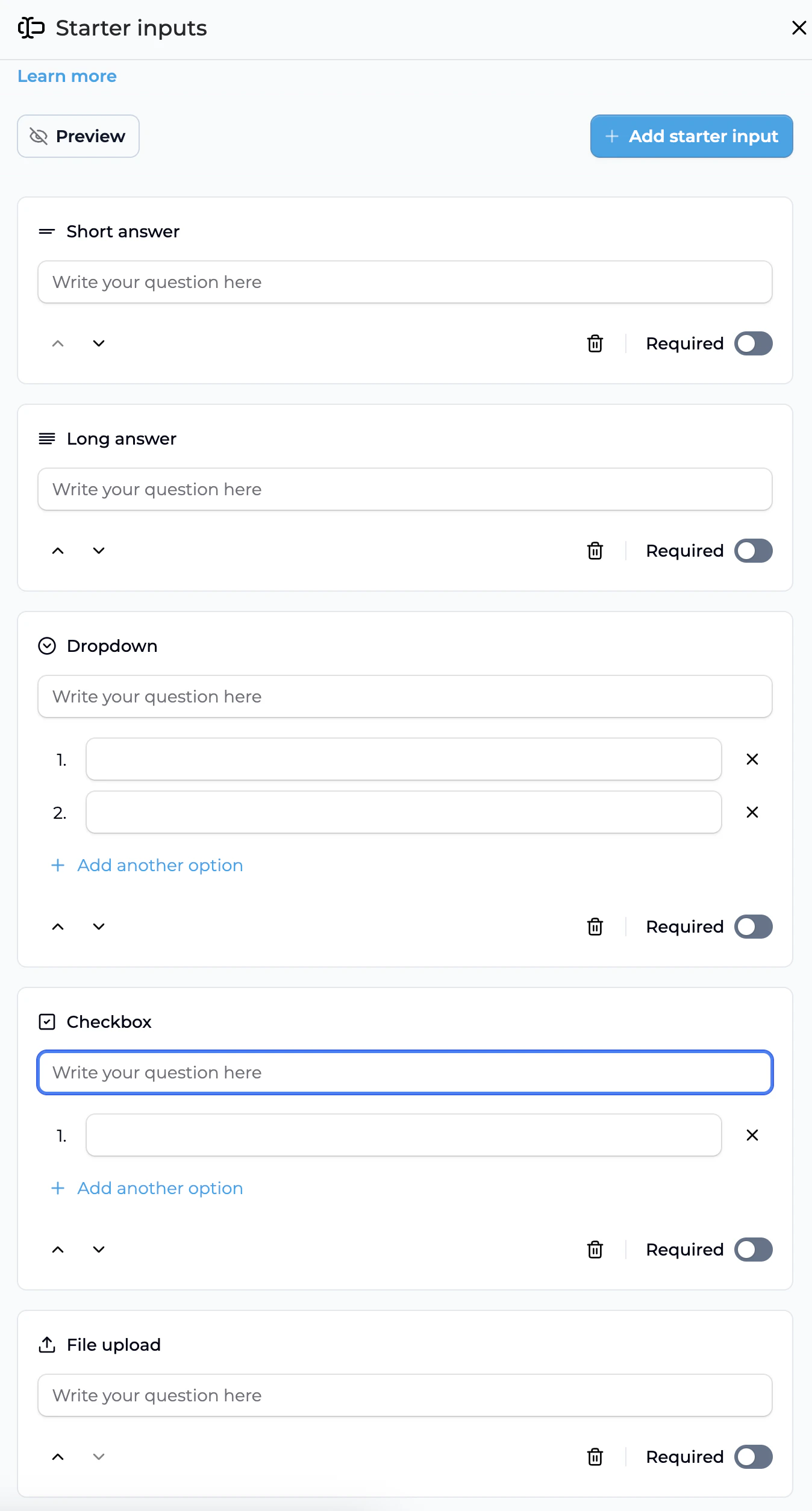
- Click “Add Starter Input” to begin
- Select from the following input types:
- Short Text: For brief responses like names or short answers
- Long Text: For extended responses like descriptions or feedback
- Dropdown: For selecting a single option from predefined choices
- Checkbox: For selecting multiple options from predefined choices (multiselect)
- File Upload: For accepting files up to 5MB (images, PDFs, CSVs, etc.)
-
Configure each input:
- Add a clear, descriptive label
- Decide whether the input should be required or optional
- Add helpful placeholder text to guide users
- For dropdowns, add at least two options
- For checkboxes, add multiple options and users can select any combination
- Arrange inputs in a logical order
- Preview your app to test the inputs
Utilize Input Data in Your App
Make your app responsive to the information collected.
- Reference input data in your app’s instructions
- Update prompts to incorporate user-provided information
- Test different approaches to see how inputs enhance the user experience
- Refine your inputs based on testing results
Starter Input Best Practices
When adding starter inputs to your Playlab app, keep these tips in mind:- Keep it focused - Only ask for information that’s essential for your app’s function
- Use appropriate input types for different kinds of information:
- Short text for names, simple responses
- Long text for detailed feedback or descriptions
- Dropdowns for single-choice categorized data or limited options
- Checkboxes for multi-choice selections where users might choose multiple relevant options
- File uploads when documents or images are needed
- Make labels clear and specific so users understand exactly what information to provide
- Use placeholder text to provide examples or clarification
- Consider the user journey - arrange inputs in a logical sequence
- Balance required vs. optional fields - too many required fields can be overwhelming
- Test with different inputs to ensure your app handles all responses appropriately
- Preview before publishing to experience your app from the user’s perspective
Frequently Asked Questions
What types of starter inputs can I add to my app?
What types of starter inputs can I add to my app?
Playlab currently supports five types of starter inputs:
- Short Text: Ideal for brief responses like names, single words, or short phrases
- Long Text: Perfect for extended responses, descriptions, feedback, or essays
- Dropdown: Allows users to select a single option from predefined choices, ensuring structured responses
- Checkbox: Enables users to select multiple options from predefined choices, perfect for collecting multiple preferences or categories
- File Upload: Enables users to upload files (up to 5MB) such as images, PDFs, or CSVs
How many starter inputs should I include in my app?
How many starter inputs should I include in my app?
While there’s no strict limit, we recommend keeping the number of inputs focused and relevant to your app’s purpose. Too many inputs might overwhelm users and create friction. Consider what information is absolutely necessary for your app to function effectively.
Can I make changes to starter inputs after publishing my app?
Can I make changes to starter inputs after publishing my app?
Yes, you can modify starter inputs even after publishing your app. However, be aware that:
- Removing inputs that existing users have relied on might create confusion
- Adding new required inputs might break the experience for returning users
How do I use the information collected from starter inputs?
How do I use the information collected from starter inputs?
The information users provide through starter inputs becomes available in your app’s context. You can:
- Reference specific inputs in your app’s instructions and prompts
- Use the information to customize the conversation flow
- Process uploaded files to extract relevant data
- Handle multiple selections from checkbox inputs to personalize responses
Are starter inputs visible to all users of my app?
Are starter inputs visible to all users of my app?
Yes, all users who access your app will see the starter inputs you’ve configured. If you have inputs that should only be visible to certain users, consider creating separate versions of your app for different audiences.
What happens if a user skips an optional starter input?
What happens if a user skips an optional starter input?
If a starter input is marked as optional and a user doesn’t provide information, your app will proceed without that data. Make sure your app’s logic can handle missing optional inputs gracefully.
Can I use uploaded files in my app's functionality?
Can I use uploaded files in my app's functionality?
Yes, files uploaded through starter inputs can be processed within your app. This is particularly useful for:
- Analyzing data from CSV files
- Extracting text from PDFs
- Using images as reference material
When should I use dropdown vs. checkbox inputs?
When should I use dropdown vs. checkbox inputs?
Choose based on how many selections you want users to make:Dropdown inputs are best when:
- Users should select only one option
- You want to ensure mutually exclusive choices
- You have a limited set of predefined options
- Users might want to select multiple relevant options
- Choices aren’t mutually exclusive
- You want to gather comprehensive preferences or multiple categories
Need Support?
If you encounter any issues while adding starter inputs:- Contact us at support@playlab.ai